Download the files below directly. The downloads guide provides the public test key and configuration; pair the device code in your own account for testing.
Android SDK package
0.2.0-rc.3
Maven repository, AAR, sample source, both test APKs, public test configuration and offline guides.
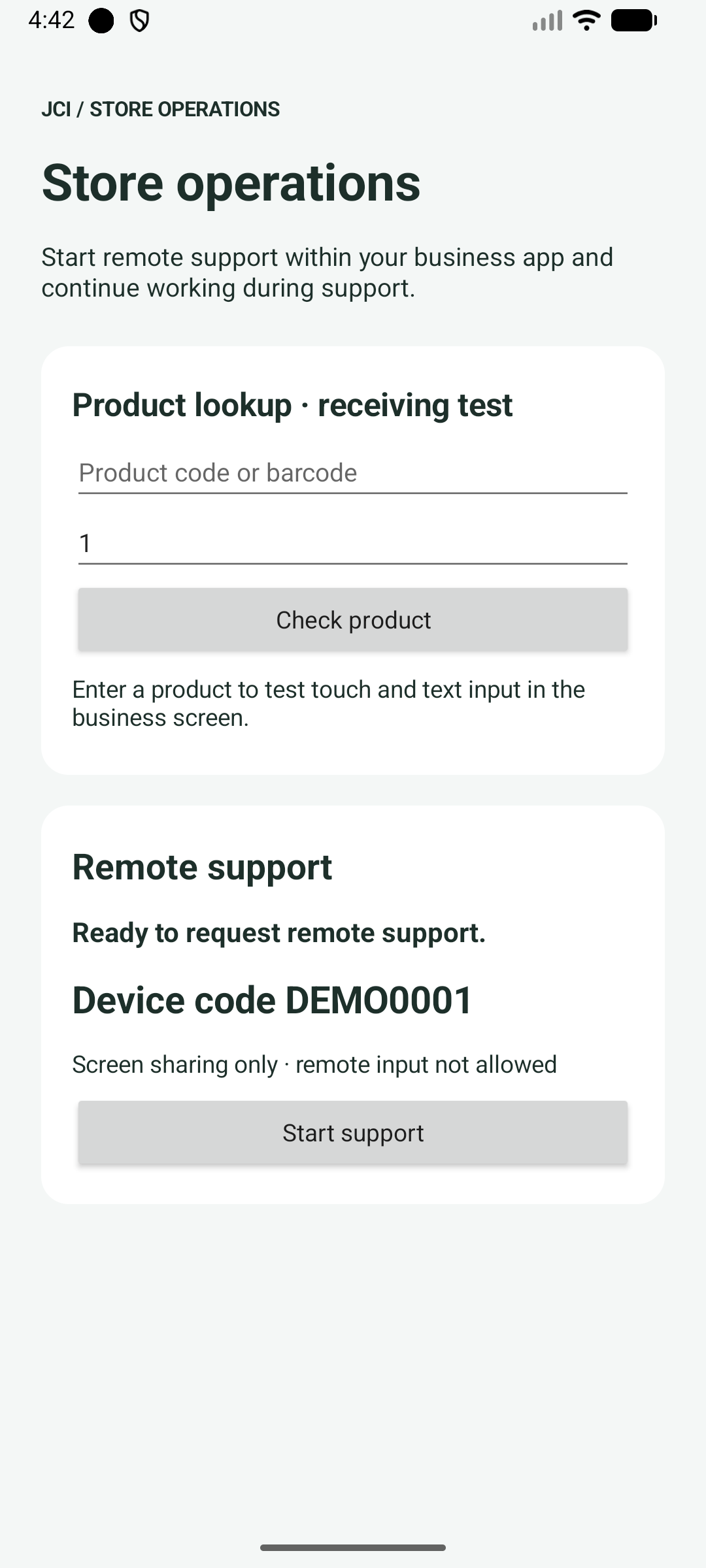
JCI Store · Support sample / streamzet-business-sample-0.2.0-rc.3.apk
An SDK embedded in a business screen. Use product code, quantity and lookup to test touch/text; it does not change real inventory.
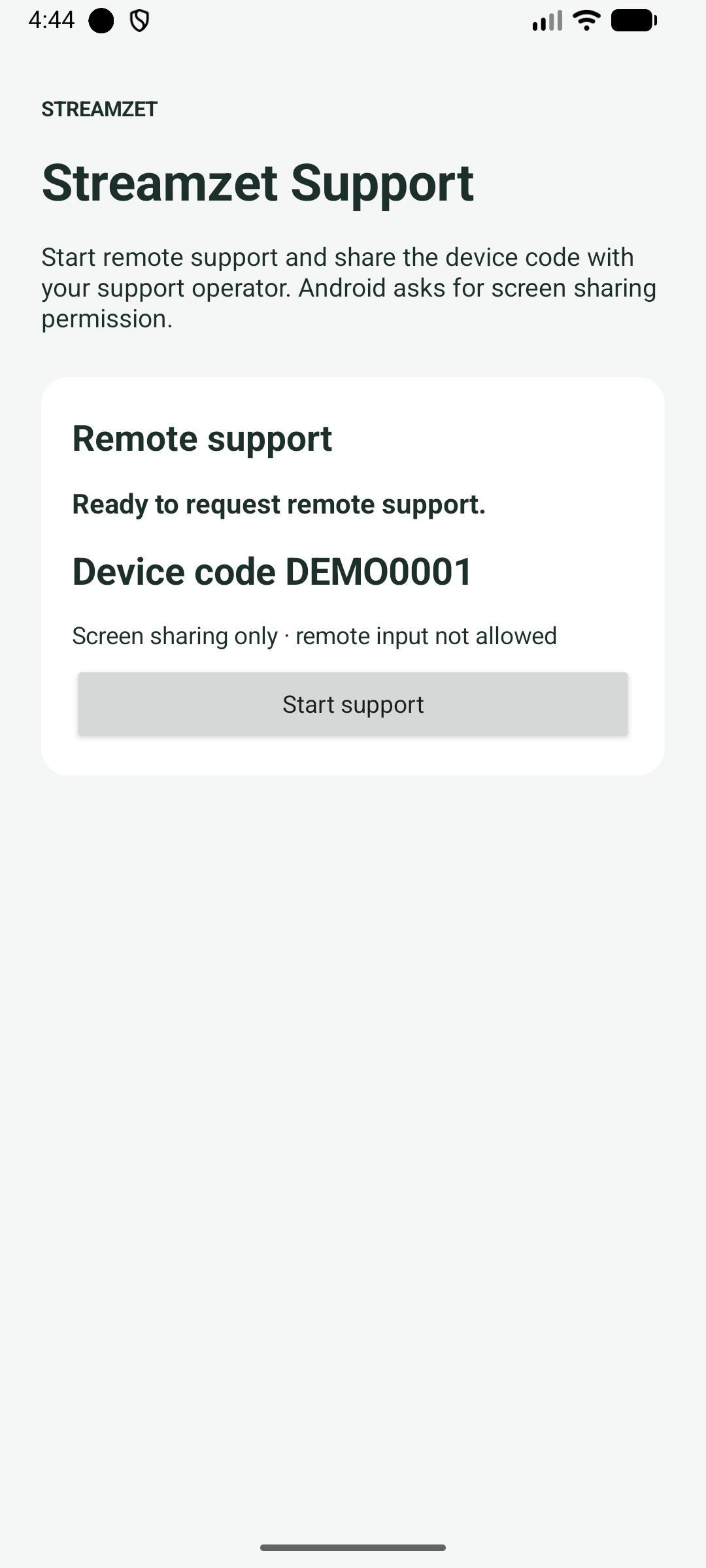
Streamzet Support / streamzet-support-0.2.0-rc.3.apk
A standalone app for starting/stopping support. Switch to another app to check screen sharing.
The apps have different applicationIds and independent registration, so their device codes differ. Share from one app at a time and stop before testing the other.
The business sample uses English. Scroll down to Open setup guide for step-by-step instructions.Streamzet Support provides support status and start/stop controls, without the business input fields.
Start with just the standalone support APK above. Both APKs include public connection settings, so no key entry or source build is needed. Sign into your own StreamZet account in a PC browser.
Download the APK on Android 8+ and open Files → Downloads. Transfer PC downloads to Android before opening.
Verify the app name, then choose Install → Open. If installation-source permission is requested, allow that browser or file app. Contact your administrator if organization policy blocks it.
For a signature conflict, keep the installed app until data preservation is clarified. Send the app name, filename and error screen through Contact support.
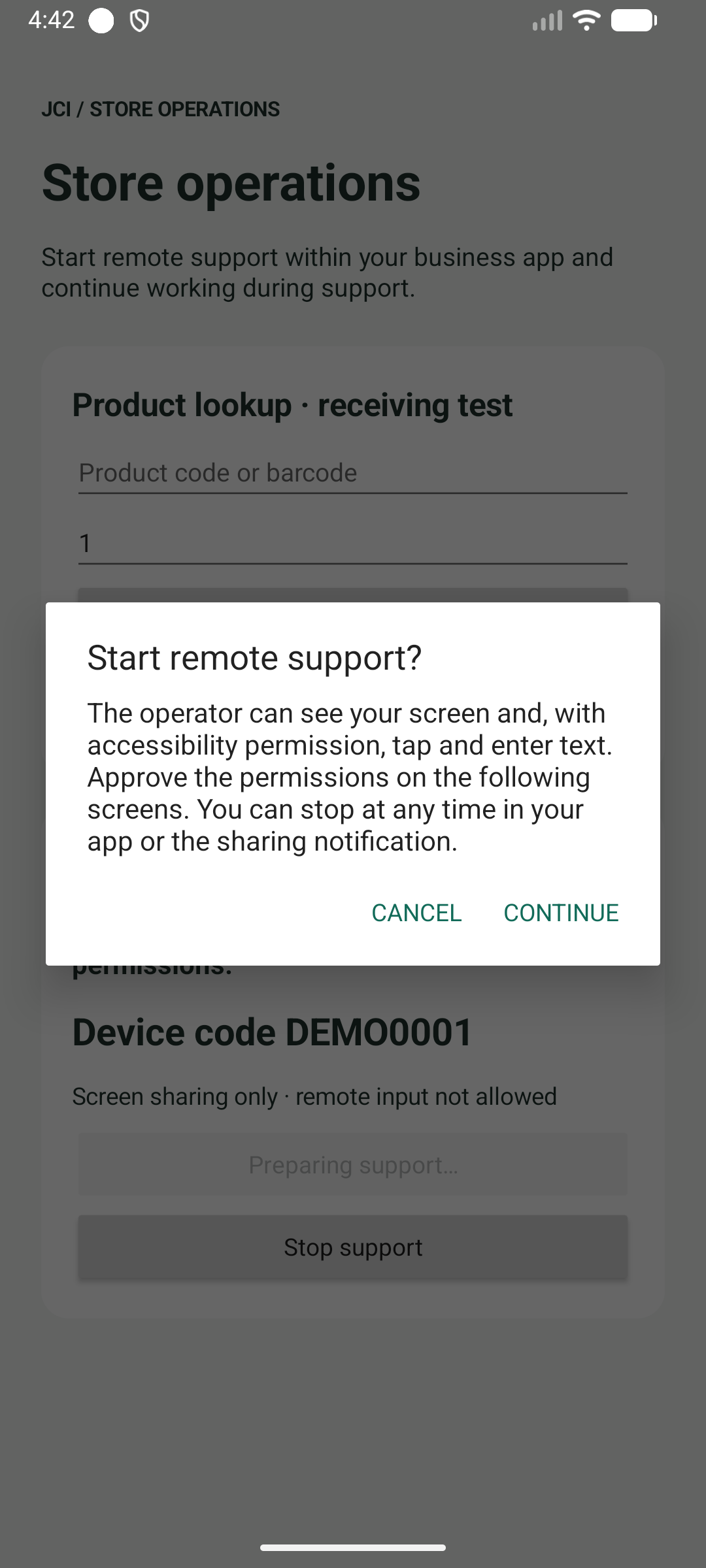
Tap Start support. The first run registers the device and shows its code. Read what the operator can access, then continue.
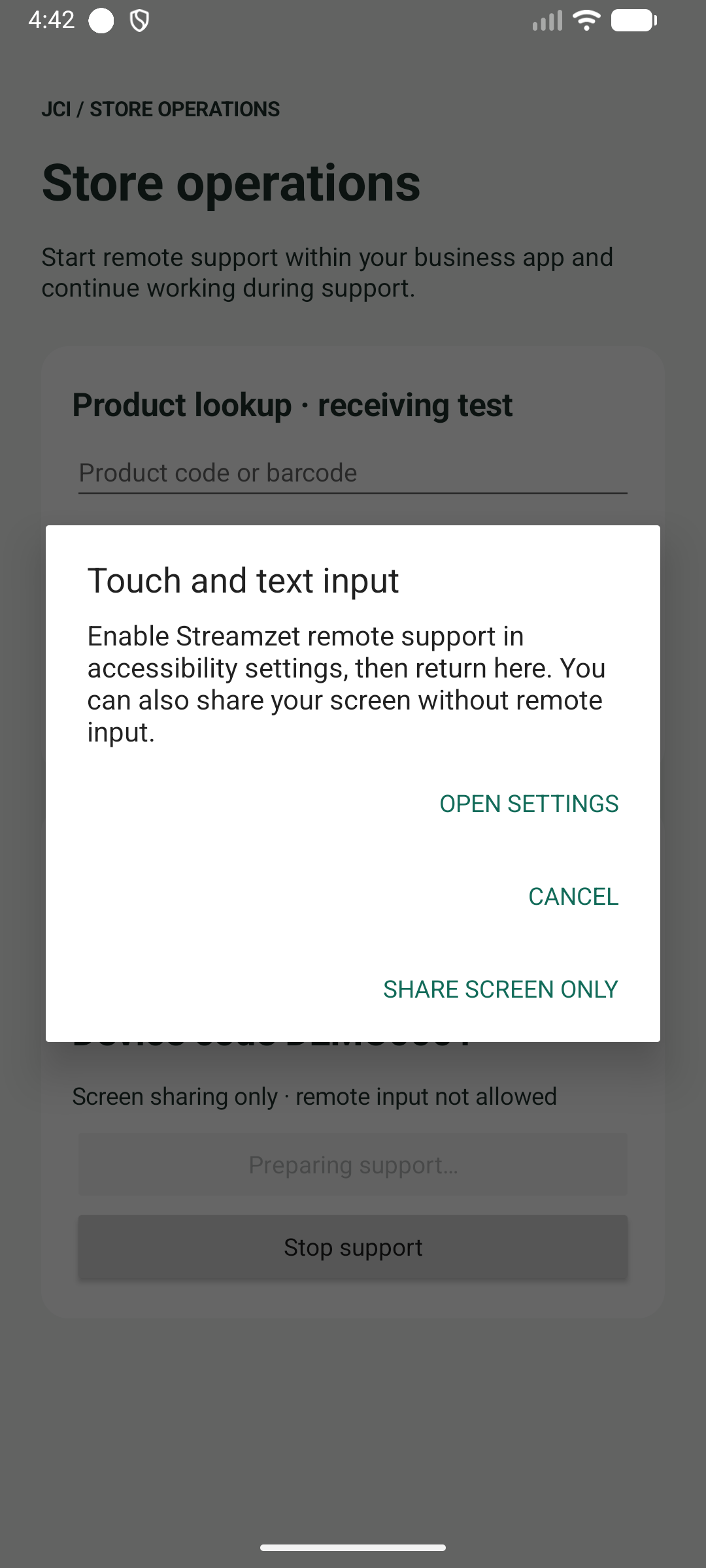
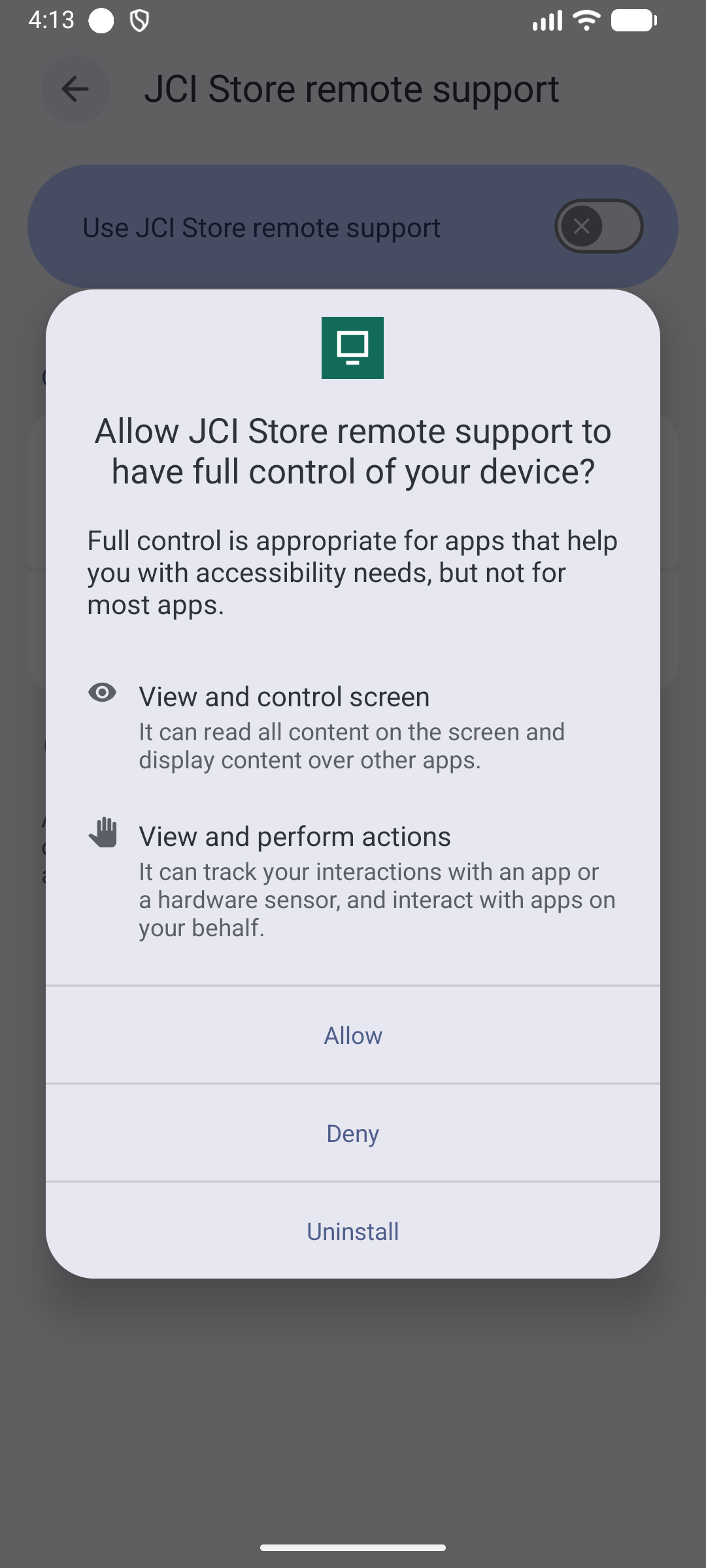
For remote touch/text, choose OPEN SETTINGS. Enable JCI Store remote support for the business sample or Streamzet Support remote input for the standalone app, approve Android’s prompt and return.
Choose SHARE SCREEN ONLY to allow viewing without accessibility input. Declining notifications is separate from declining screen sharing.
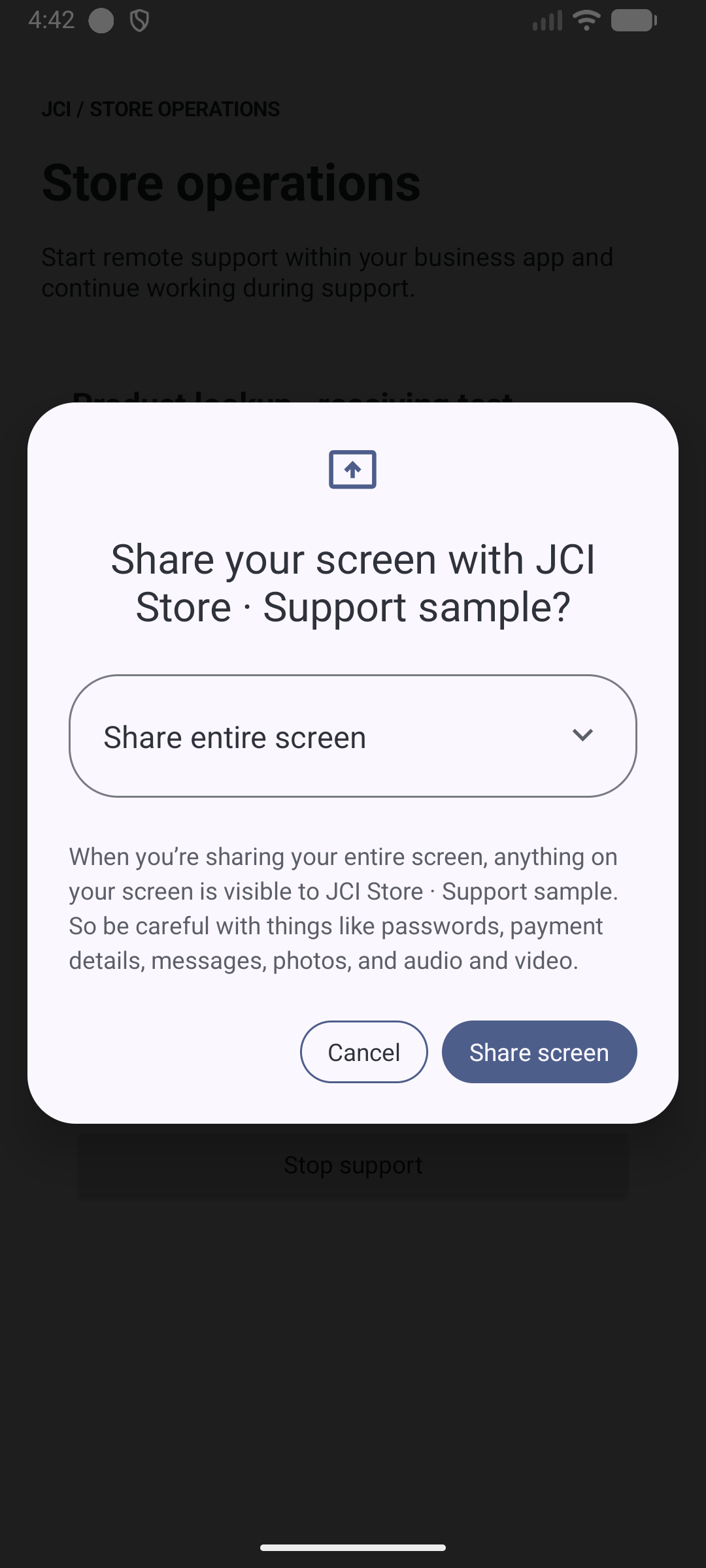
Review the scope in Android’s sharing dialog and choose Share screen. App/entire-screen choices and wording vary by Android version. Cancel leaves sharing off and allows retry.
Read the scope before choosing to continue.Accessibility is optional. Test the screen-only path as well.Android 16 test capture. On the target device, confirm the app name and OS explanation before the user approves.Fresh system consent is required for each new support session. Select the entire screen if other apps must be visible.
Share the displayed 8-character code with the authorized operator. Do not publish it or distribute it in screenshots/logs. A code alone does not mean sharing is active.
On the PC, open StreamZet Devices, register that app’s code, then start the registered device’s session. If your organization separately configured automatic enrollment, follow its administrator’s instructions.
Confirm that the app is waiting for the operator, then start its remote session from the dashboard. Verify moving video, connection state and the remote-input indicator.
In the business sample, remotely enter SDK-TEST-123, change quantity and tap Check product. For the standalone app, open an approved test app and check touch, Back, Home and text. Use no passwords or personal data.
Screen-only sessions must reject remote input. Rotate/navigate and check continuing video. Product lookup is a fixed demo, not validation of a scanner or inventory backend.
Stop with the app’s Stop support, the dashboard’s End support, or Android’s sharing stop control. Verify video/input stop and Start becomes available. A new session requires consent again. Navigating away or backgrounding the app does not itself stop support.
Verify code persistence after a same-signature update and app restart. Do not interchange the two APKs’ codes. Uninstall/data-clear tests can create new registration; coordinate how old pairing/history is handled.
Confirm you installed the public APK from this page. If a fresh download still cannot start, send the app name, Android version and error screen through Contact support.
Registration failed
Check internet access and try again. If a fresh public APK still fails, send the app name, device and error text through Contact support. No manual key changes are needed.
Waiting for operator
Pair the code from the app currently sharing, then select Start Session for that device. End any earlier session first. If it fails only on your company network, contact your administrator.
Video works, input does not
Check view-only mode and enable this app’s accessibility service. Secure fields, protected screens and OEM restrictions are separate limits.
Enter/search does not work
IME Enter actions require API 30+ and editor support. On Android 8–10 or custom editors, tap the on-screen search button.
Signature mismatch / install failure
If data must be preserved, obtain an APK signed with the existing key rather than uninstalling.
The following is an optional developer workflow, unnecessary for trying the public APKs. Inside the ZIP, the APKs are named jci-sample-debug.apk and streamzet-support-debug.apk, unlike the direct web-download names.
sh
# Inside the public ZIP's source directory:
# The public ZIP already includes sdk-test.properties.
# For a fresh repository checkout, download it from /docs/downloads.
# The default sdk.apiKey=sz_test_public needs no URL configuration.
# Use only sz_test_public in redistributable evaluation APKs.
./gradlew :sample:assembleDebug :app:assembleDebug
# Both apps use the ZIP's Maven SDK by default.
# Outputs:
# sample/build/outputs/apk/debug/sample-debug.apk
# app/build/outputs/apk/debug/app-debug.apk
sh
# From the source directory after building:
adb install -r sample/build/outputs/apk/debug/sample-debug.apk
adb install -r app/build/outputs/apk/debug/app-debug.apk